
Create your account
An e-mail, a six-digit code, two questions: your account receives its first tenders within three minutes.
No password to remember, no card to enter: SangoBids opens an account with your e-mail address and a code sent to it. Two questions follow, sectors and regions, and the dashboard already shows the tenders that concern you, out of the 12 notices open in the country today.
Open your account
Go to app.sangobids.com/register, or download the app from the App Store or Google Play: the screens are the same.
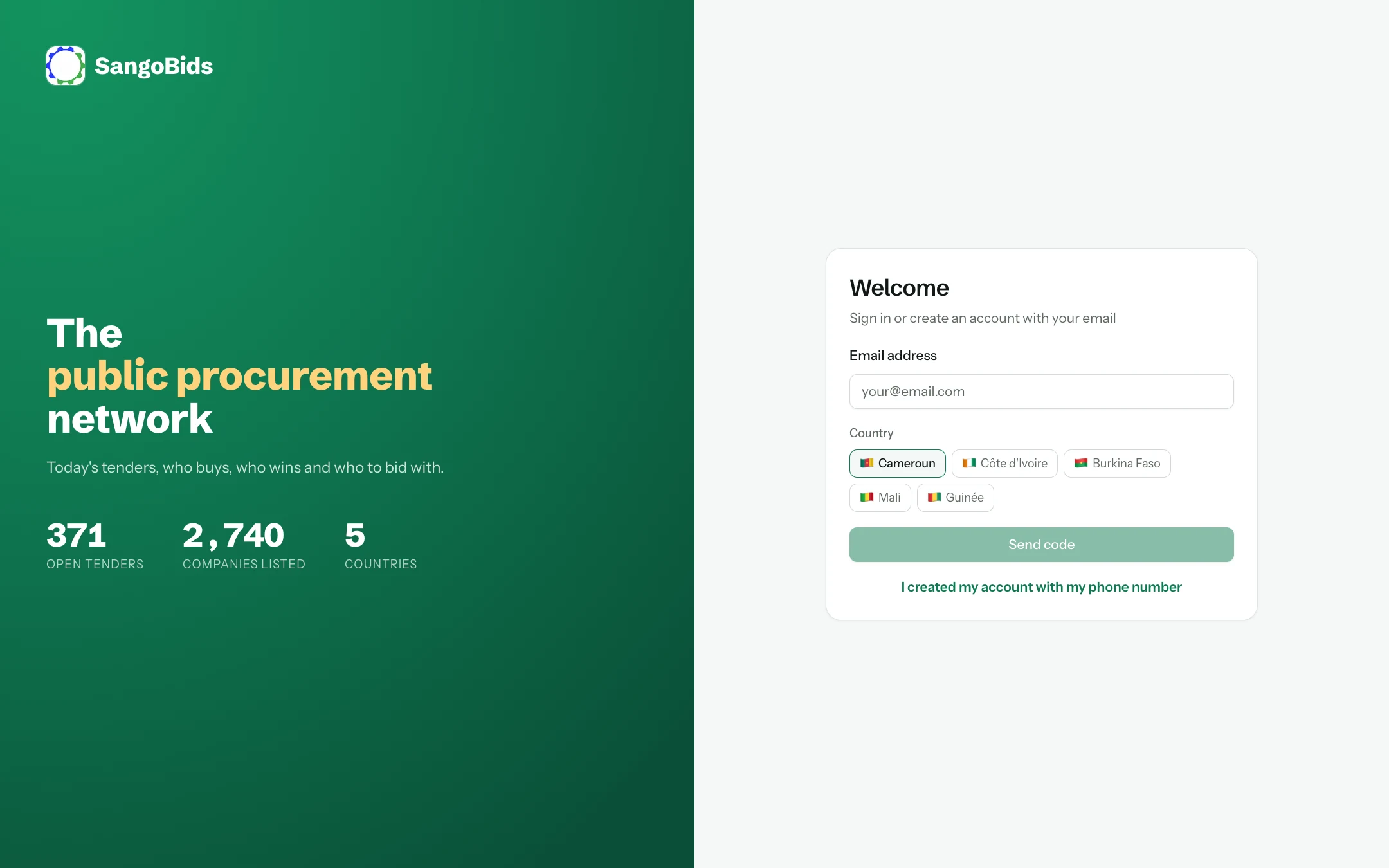
Computer
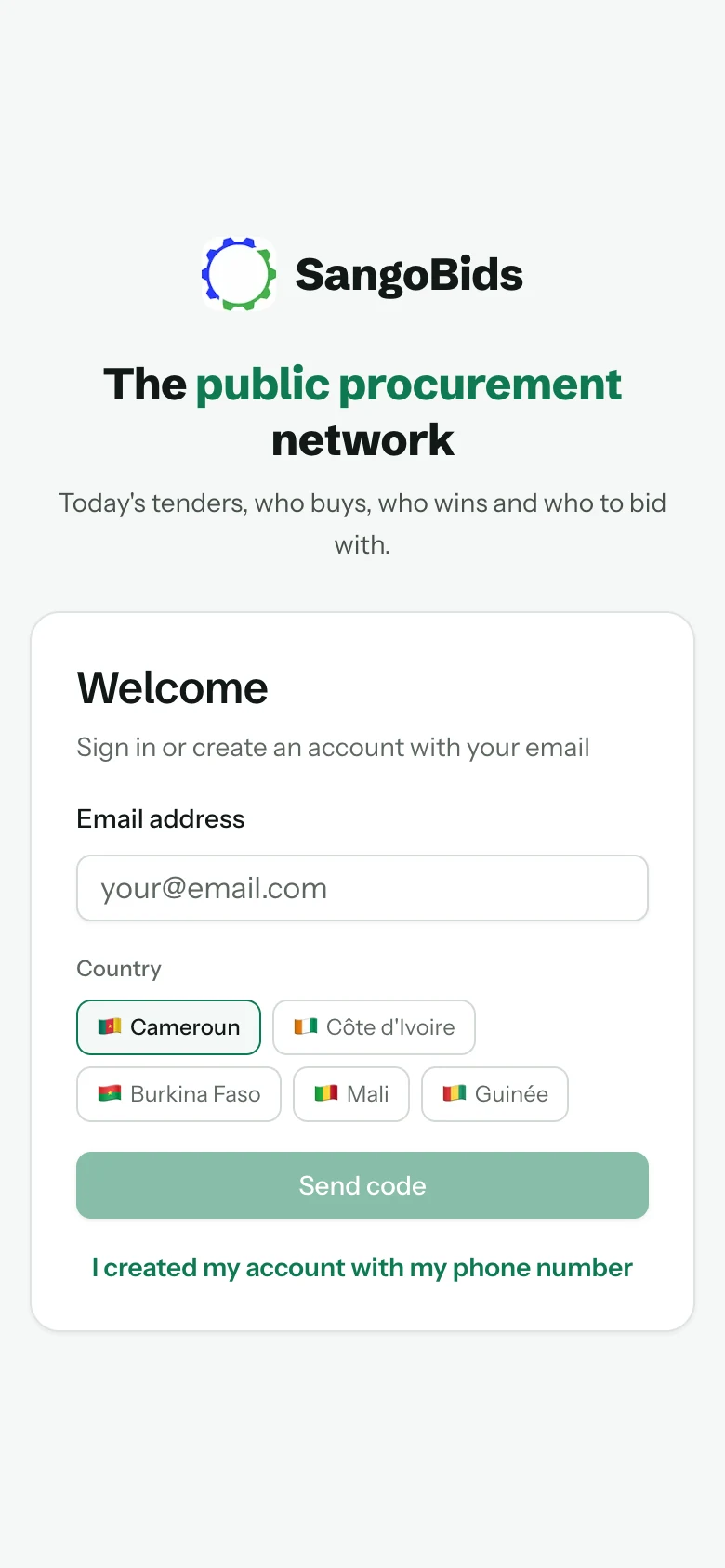
Phone
Enter your e-mail address
Use the address you read most: alerts and deadline reminders will land there.
Choose your country
The country sets which tenders you see, the currency and the administrative documents requested. Choose the one where you bid: it stays attached to the account.
Send the code
A six-digit code leaves by e-mail at once. If it has not arrived within a minute, check the spam folder before asking for a new one.
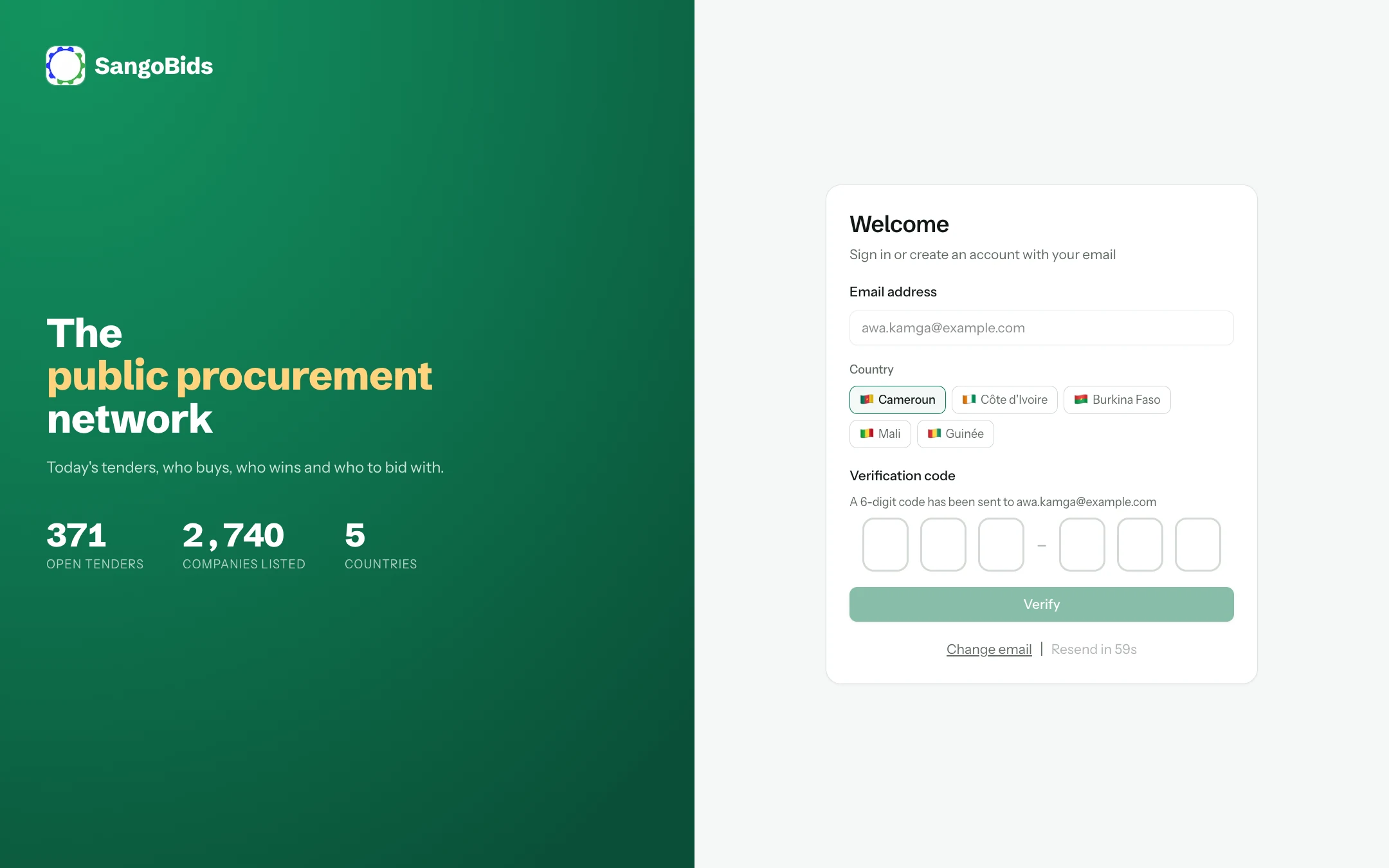
Computer
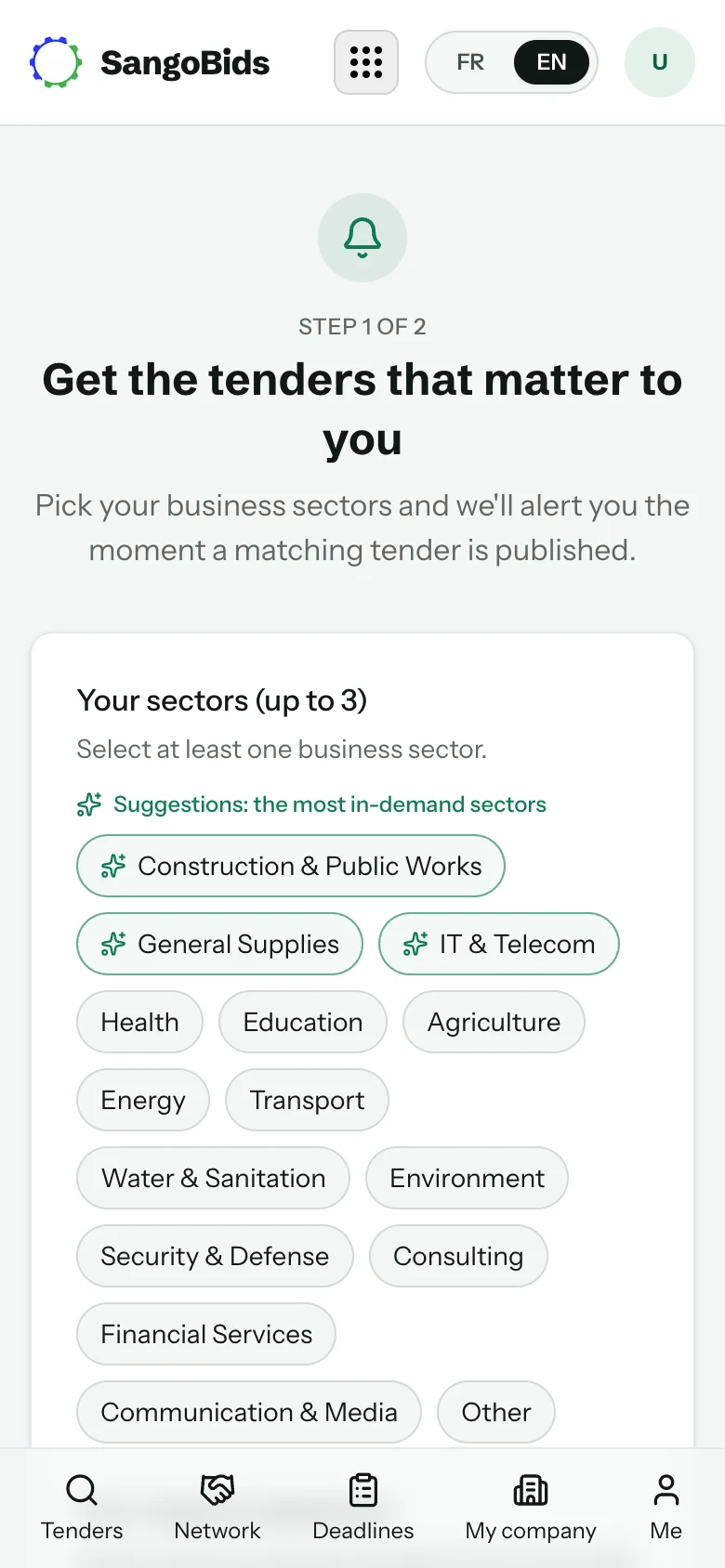
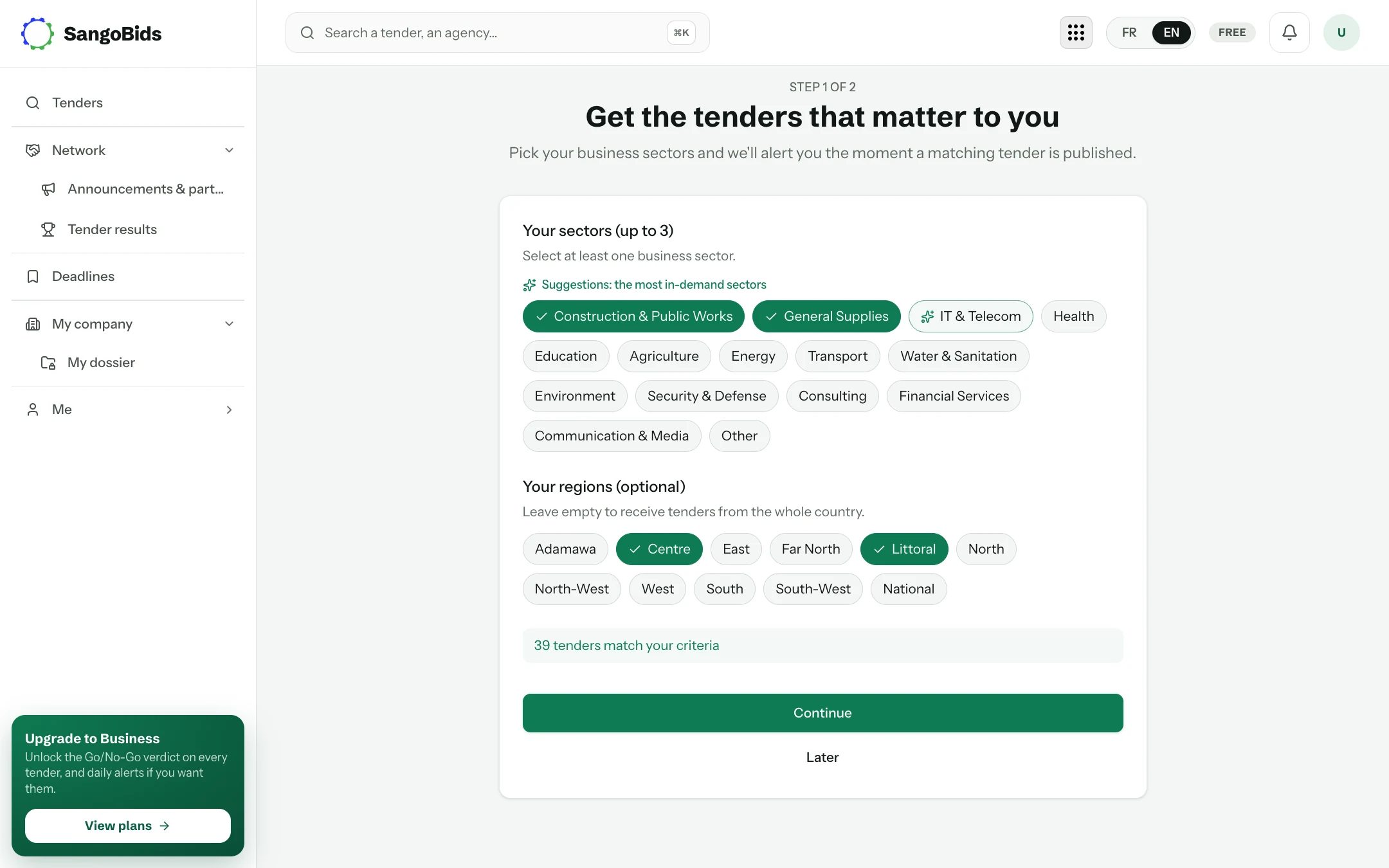
Say what you sell
SangoBids does not show you everything: it sorts. The first question is for that.
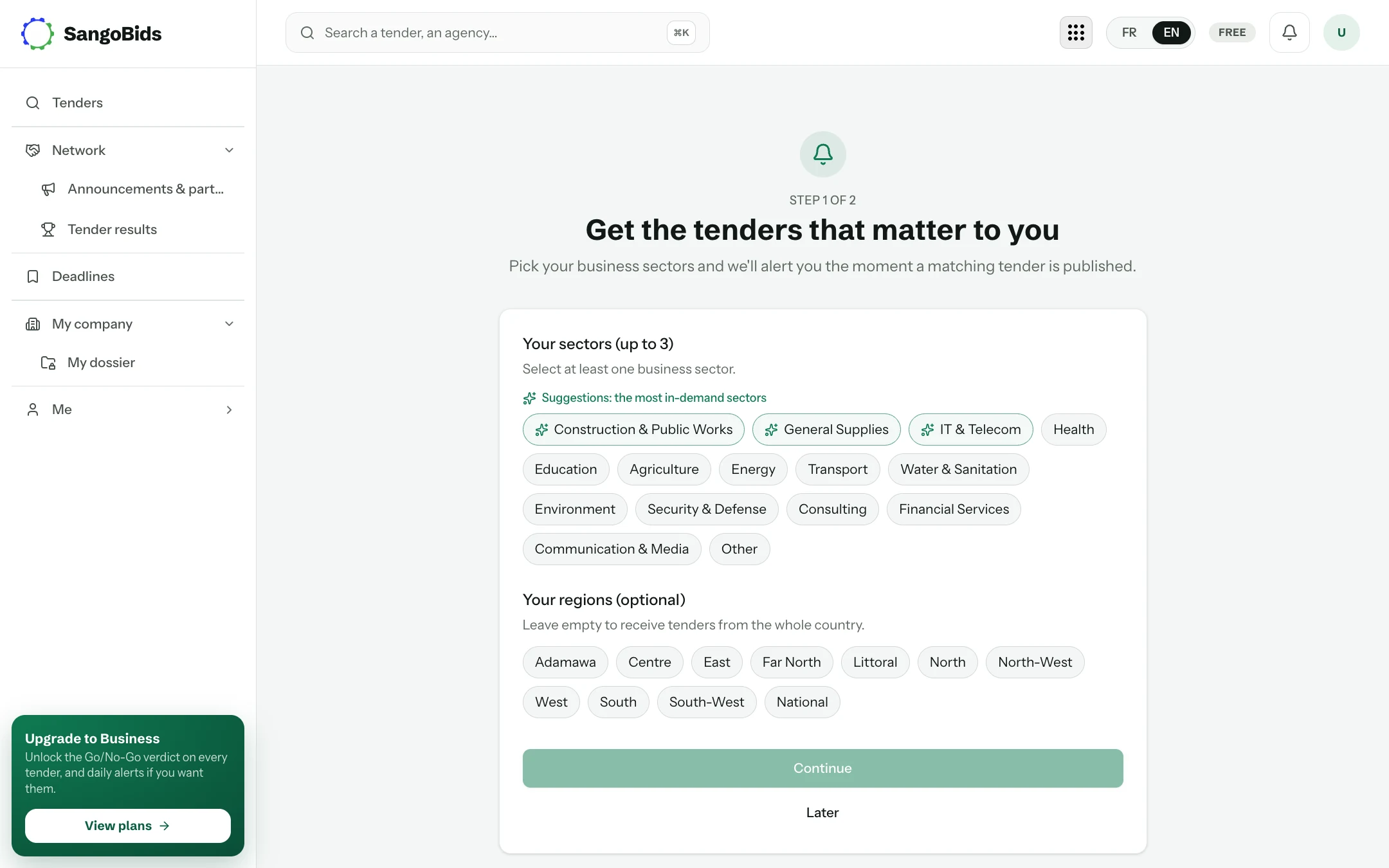
Computer
Phone
Choose up to three sectors
Pick the ones you could bid in tomorrow, not the ones you find interesting from afar. One sector too many, and every alert carries noise.
Computer
Leave the regions empty if you work across the whole country: you will then receive notices from every region.
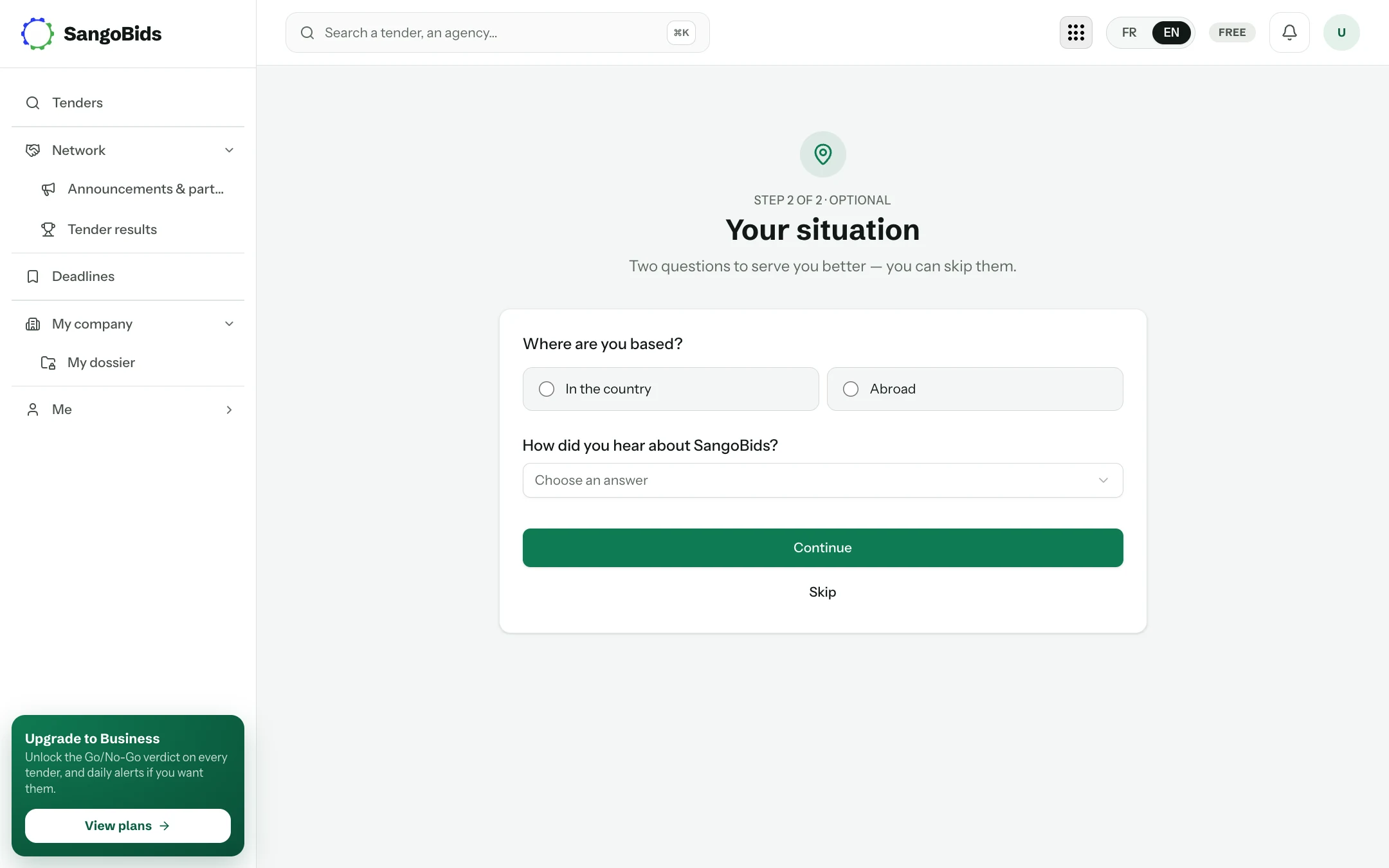
Alerts, now or later
The second step offers to turn on alerts: an e-mail or a notification as soon as a matching notice is published. You can skip it and come back to it at any time from Me, then Notifications, in the app.
Computer
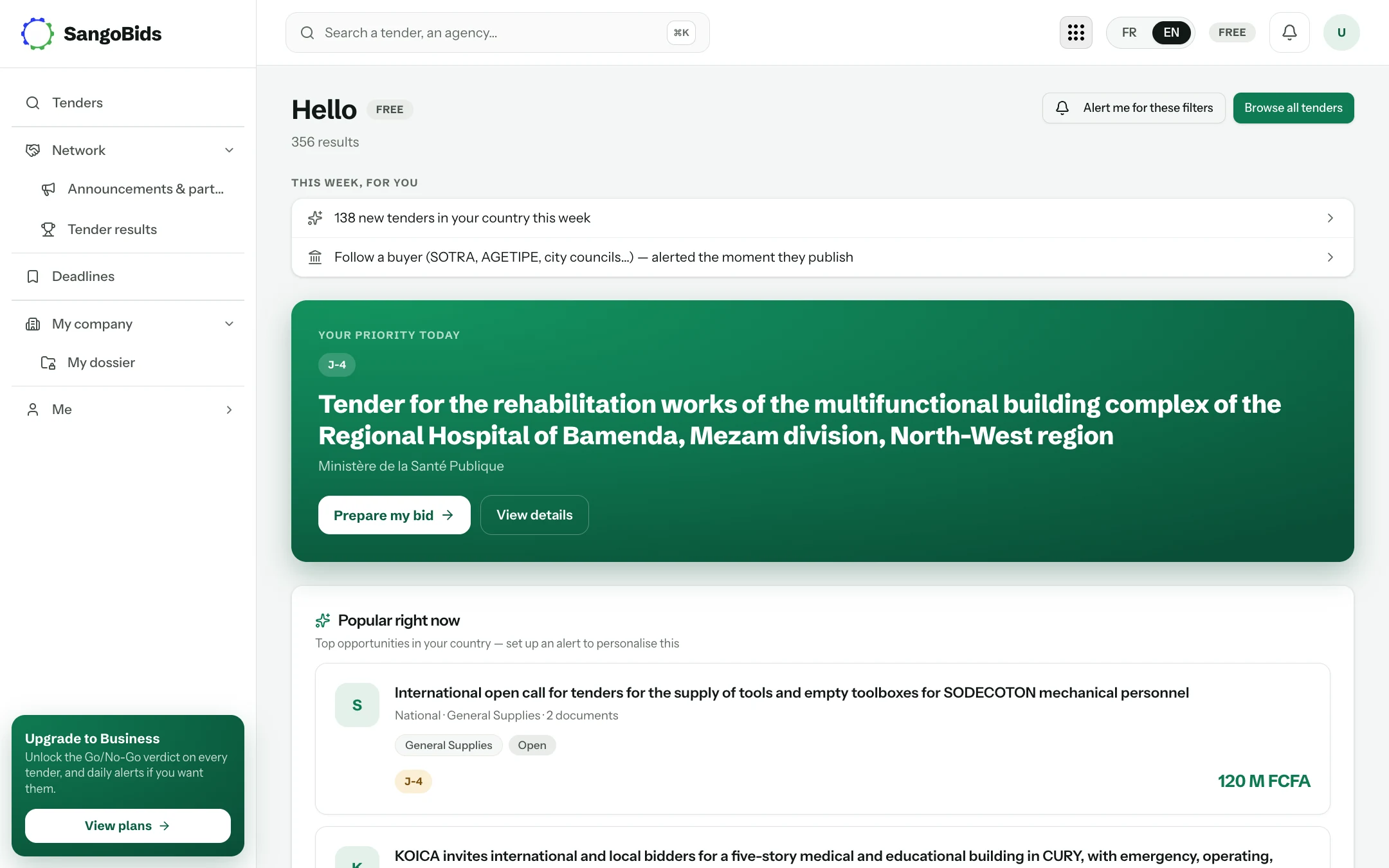
Your dashboard
Computer
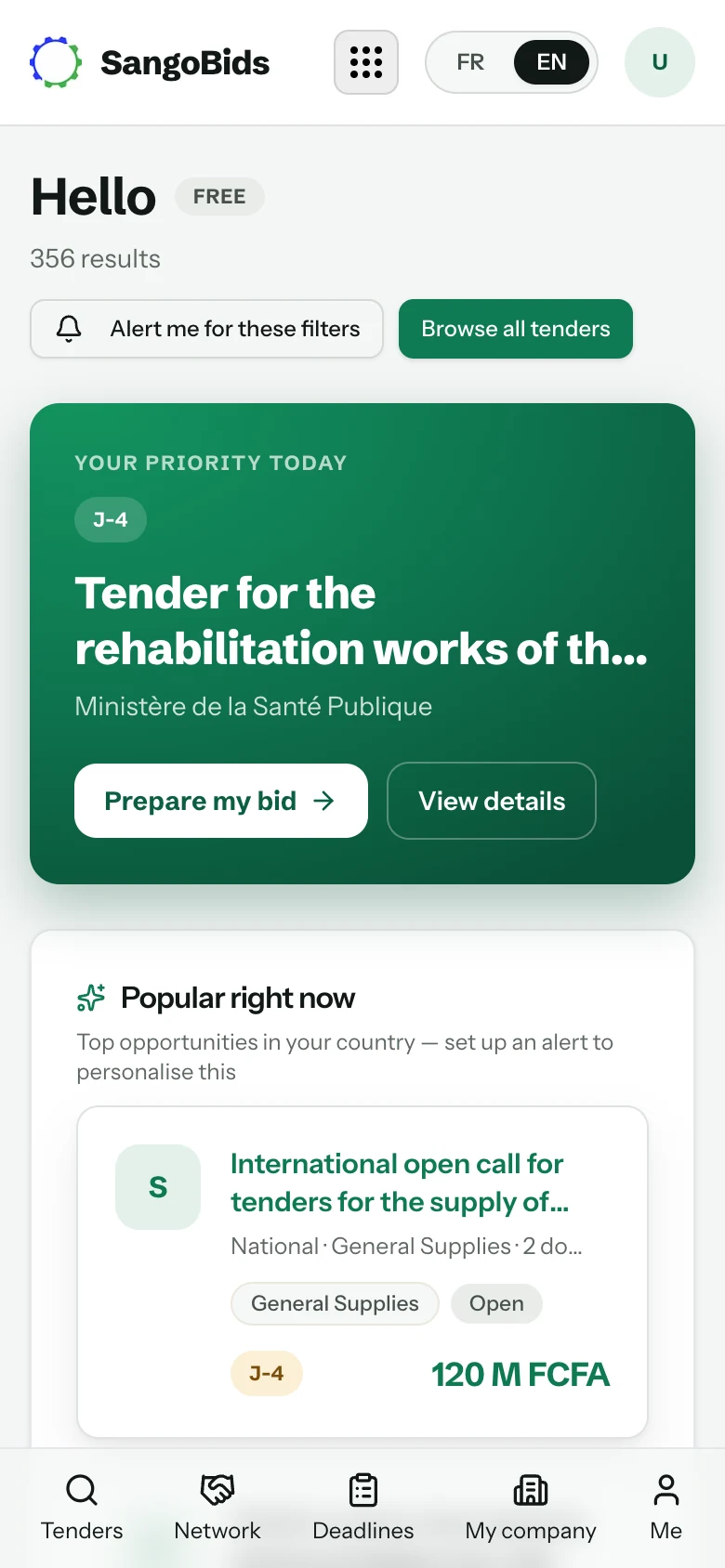
Phone
Three things to spot on this page:
- The counter at the top says how many notices match your profile. If it is very high, narrow the sectors; if it is zero, widen them or remove the regions.
- Today's priority is the notice that best matches your profile among those closing soon. The countdown (D-4, D-12…) is the number of days before the submission deadline.
- The left menu (or the bottom bar on a phone) holds everything else: tenders, the company network, your deadlines, your company and your settings.
What next
The account exists and the sorting is set. The next step is finding and reading notices: that is the subject of Search for tenders.
Read next
- Search for tendersKeyword, sector, region, buyer, amount: how to go from every notice in the country to the ten that matter to you.
- The Go/No-Go verdictKnow in two minutes whether a tender is worth a week of work: the verdict, its reasons, your dossier against the notice and the requirement checklist.
Ready to try?
The account is free and public tenders stay free. Three minutes is enough to receive the first ones.
Get started free